Identifying Your Roomba Model and Series for Compatible Replacement Parts
The Roomba model/series identifier is the alphanumeric code that distinguishes your robot vacuum from other models. You need this exact identifier—the full printed string from the device or documentation—to order compatible replacement parts.
Record the entire identifier without guesswork.
Look for the model number in these places:
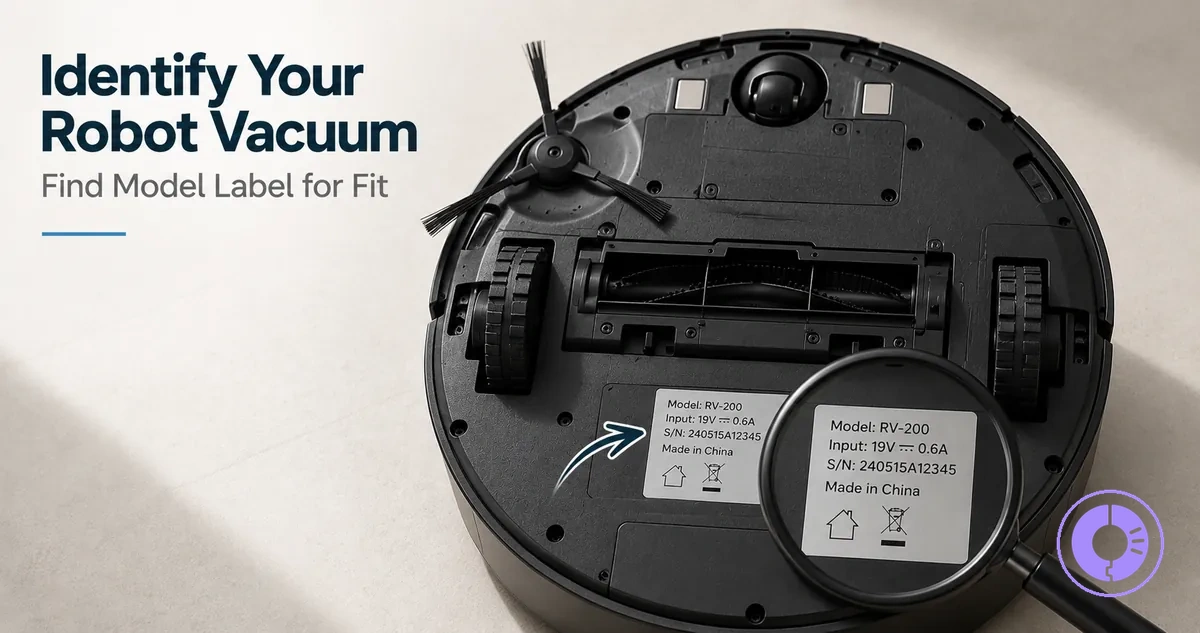
- Underside label: flip the robot over and locate the model number, often near the left wheel.
- iRobot Home app: open the app and locate the model number, typically under Product Settings or About Roomba.
- Original box or paperwork: the model number is printed on the packaging and in the manual.
- Serial number decode: the first digits on the label can help identify the series.
The model number gates compatibility for replacement parts such as filters, brushes, and batteries. Different Roomba series use different designs and connectors, so a part intended for one series may not fit another. Even within a series, revision changes can affect fit. Before ordering any replacement component, confirm that the part is listed as compatible with your exact model number.
Why Exact Model Identification Is the First Compatibility Check
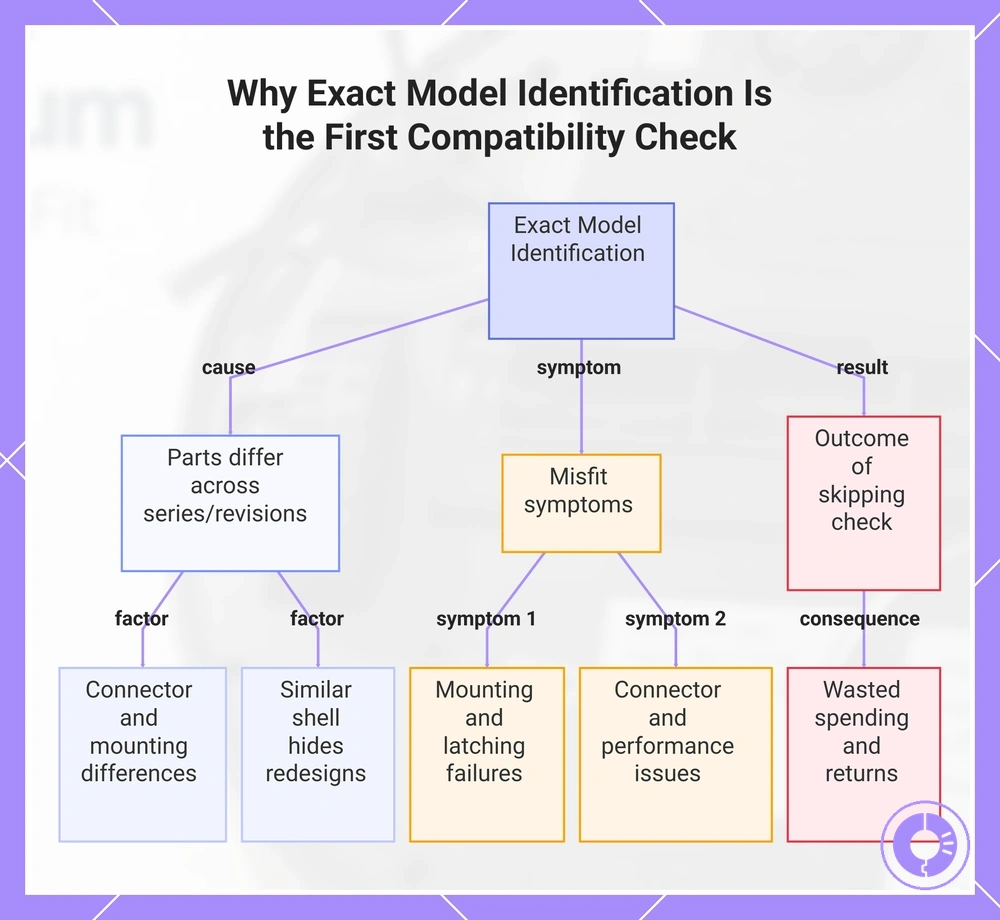
Identifying the exact model number serves as the first compatibility check because two Roombas that look alike may still require different replacement parts. The internal connectors, mounting points, and part shapes can vary between series and even across revisions of the same series. Checking the full model number before ordering can help prevent a misfit.
Later generations of a series sometimes use redesigned components while the outer shell remains similar, which can cause misfits.
What changes between series or revisions is often the connector shape, brush interface, or internal dimensions. When a part from an earlier model is tried on a later revision, it may not latch, seal, or connect as expected.
You can use a compatibility checklist for replacement parts to confirm fit by model number before ordering.
- Doesn't fit into the intended mounting slot.
- Won't latch or lock into place.
- Connector does not align with the internal wiring port.
- Brush or roller spins loosely or not at all.
- Battery cover does not close properly.
- Part requires force to insert, risking damage to adjacent components.
Verifying the model number before ordering helps avoid wasted spending and returns.
This chart explains why verifying the exact model number is the first compatibility check for Roomba replacement parts and what symptoms indicate a misfit.
Model Number, Series Name, and Serial Number: Which Identifier You Actually Need
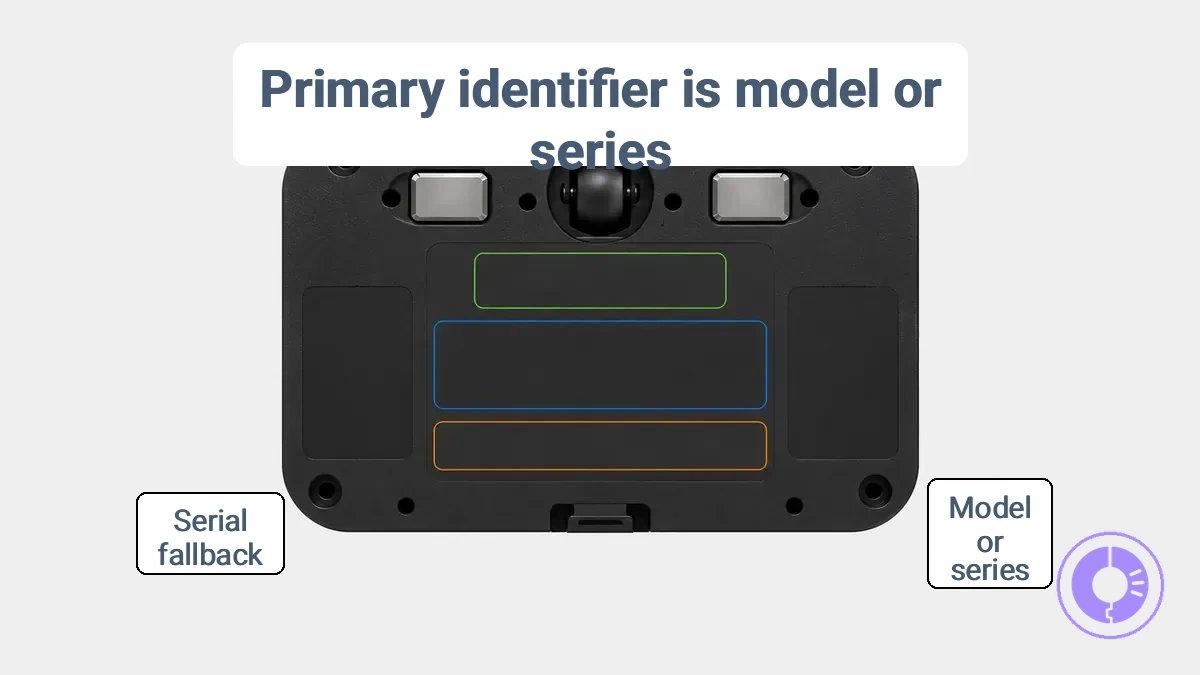
A model number identifies the engineering configuration of a Roomba. A series name groups related models under a common platform. A serial number is a unique code assigned to that individual unit. When selecting replacement parts, the model number or series is typically the primary identifier used to help confirm fit.
This illustration shows where each identifier appears on a typical Roomba label.
- Model number – Represents the specific design and hardware revision (attribute). It typically helps confirm the relevant physical dimensions, mounting points, and electrical specifications for parts like wheels, batteries, and main boards (value). Alone it may not reflect minor production-run changes that affect component fit (boundary).
- Series name – Represents the product generation (attribute). It typically confirms compatibility with many commonly replaced parts such as brushes, filters, and side brushes (value). Alone it cannot resolve differences between models within the same series (boundary).
- Serial number – Represents the unique unit identifier assigned during manufacturing (attribute). It can help recover the factory configuration when the label is worn or missing (value). On its own it is not used to select replacement parts and typically requires cross-referencing with the model number or series (boundary).
Serial numbers are a fallback for unreadable labels and require cross-checking for parts compatibility.
Common Roomba identifier formats and why they can be confusing
Roomba identifier formats are printed strings that combine letters and numbers. A partial code like 540 is often mistaken for the full model number, even though the complete identifier also includes prefixes and suffixes. To avoid misidentification, copy the full printed string exactly as shown on the robot's underside.
- Pattern: three letters followed by three numbers (e.g., ABC123). Risk: users may isolate the numbers as the model series, ignoring the letter prefix. Capture rule: record every character from first letter to last digit.
- Pattern: two groups separated by a hyphen (e.g., XYZ-789). Risk: the part after the hyphen may be mistaken for a serial number or accessory code. Capture rule: copy the hyphen and all characters on both sides as one string.
- Pattern: uppercase letters and numbers with no separator (e.g., LMN456). Risk: the mixture can confuse the model series with the revision code, especially when series use different letter combinations. Capture rule: transcribe the string exactly, noting uppercase.
- Pattern: older models often use only three numbers (e.g., 123); newer models may include letters. Risk: assuming one format leads to using a partial code. Capture rule: verify the full length of the printed string.
- Pattern: suffix after a space or hyphen (e.g., GHI 345). Risk: the suffix may be omitted if not recognized. Capture rule: include every character and space as printed.
Double-check each character before using the string for parts lookup or troubleshooting.
Where to find your Roomba's model label on the robot
Your Roomba's model label is typically located on the underside near the left wheel. It provides the model number and series used to identify compatible replacement parts.
The image shows the model label on the underside of the robot. For a detailed breakdown of the label fields and how they relate to parts, see the parts diagram and labels explained guide.
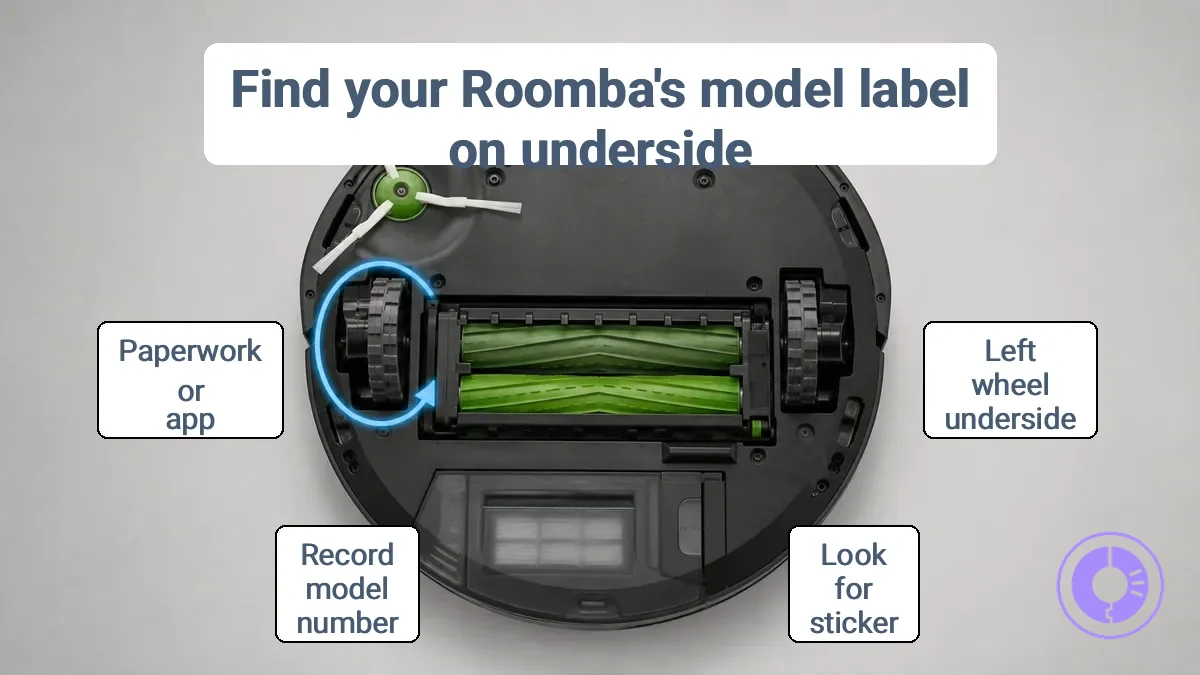
Follow these steps to identify your Roomba model number:
- Turn the robot over and set it on a flat surface.
- Look for the printed sticker or engraved label.
- Read the model number and series directly from the label.
- Record the full string of letters and numbers.
- If the sticker is worn, use a flashlight to read it.
Caution: Do not remove any panels or try to peel the label. Simply read it from the underside.
If the label is too worn to read clearly, you can often find the same information in the product paperwork packed with the robot or in the mobile app under device details. These are common fallback sources when the physical label is compromised.
Checking the Underside Label Near the Wheel Area
Flip the robot over. Look for the underside label near the wheel area.
- Place the robot upside down to expose its underside.
- The label is often near a wheel, such as the left wheel, but its precise location varies—check the wheel area.
- Record the full model number printed on the label.
- Note any series cues or revision indicators on the same label.
- Double-check similar-looking characters, like 0 vs O or 1 vs I, to avoid misreading.
Checking inside the bin / bin compartment when the underside label isn't enough
Check inside the bin or bin compartment for a secondary identifier only if the underside label is unreadable. Power off the robot and handle the bin gently before opening. Bin-compartment labels are model-dependent and may not exist on every unit.
- Remove the bin and inspect the interior walls or underside of the bin for a printed label or sticker.
- Note any numbers, letters, or barcodes visible in the bin compartment.
- Use the secondary identifier to confirm the model through another source before proceeding.
Finding the model in the iRobot app and device information screens
Check your Roomba model number and series on the iRobot app device information screen to confirm replacement-part compatibility.
The annotated screenshot shows where the model number and series appear on the device information screen.
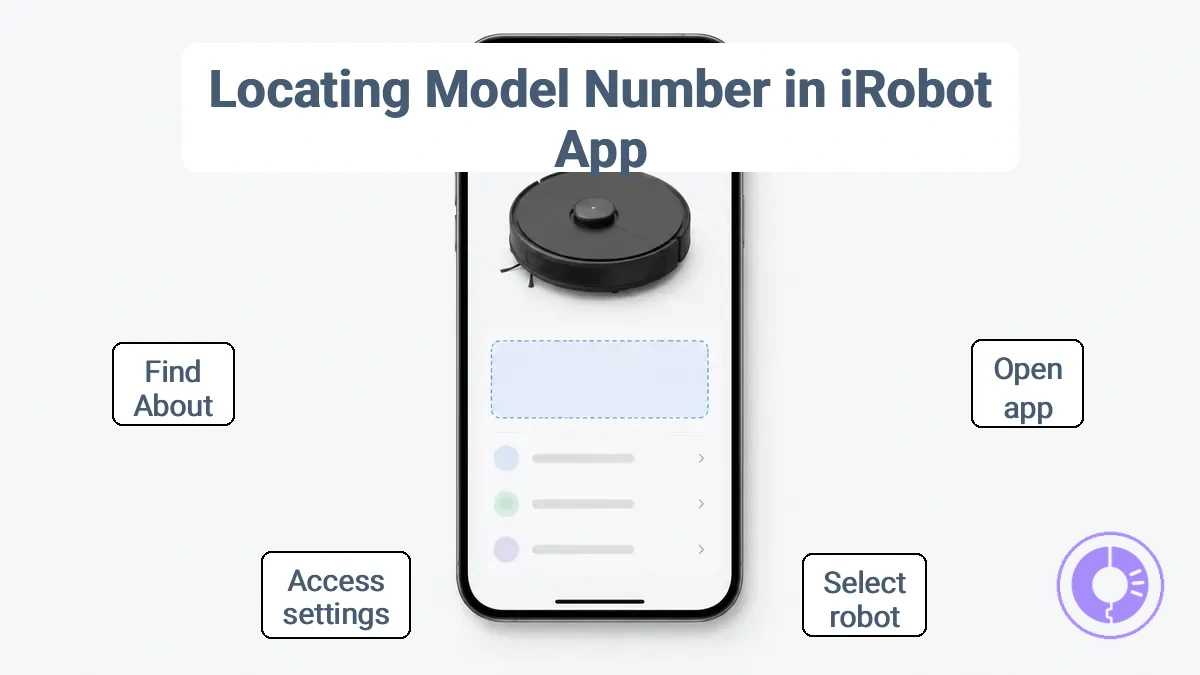
To find the model in the iRobot app and device information, follow these steps. Depending on your app version, the menu path may differ slightly.
- Open the iRobot app and select your robot from the home screen.
- Tap the robot name or the gear icon to open device settings.
- Locate the 'About' or 'Device Information' section.
- Read the fields labeled 'Model Number' and 'Series'.
- Confirm that the displayed identifier matches the model printed on the underside of your robot.
If multiple robots are saved under your account, select the correct device profile before checking the model. Selecting the wrong saved robot often causes a mismatch between the app identifier and the physical unit.
Using the box, manual, or order history to confirm the exact variant
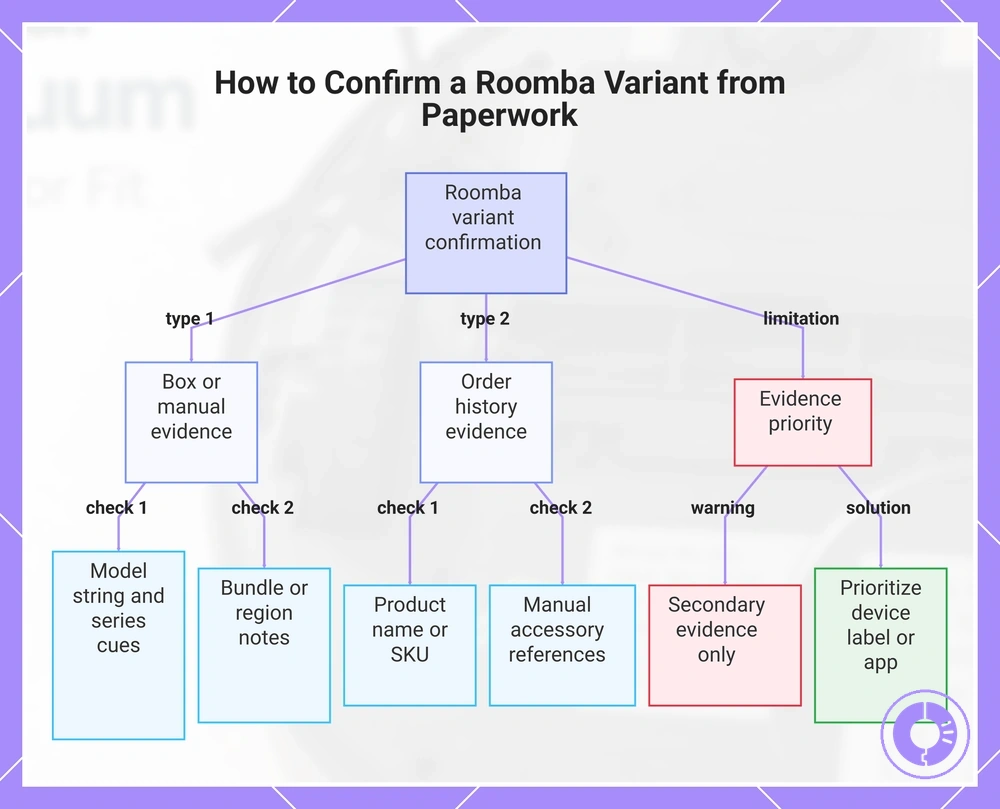
Match the information on the box, manual, or order history to the physical unit to confirm the exact Roomba variant. The model number, series cues, and any bundle or region notes printed on these documents can help identify the variant when the device label or app details are not available. However, paperwork should be treated as secondary evidence because it may not always reflect the unit stored inside the package, especially for used or resold devices.
To confirm the exact variant, check these details on available documents:
- The model string on the box or manual — usually a combination of letters and numbers that identifies the series.
- Series cues like generation, shape, or color references on the packaging.
- Bundle or region notes — for example, special edition labels or regional model codes that may indicate a specific variant.
- Order history details such as the product name, SKU, or purchase description recorded at purchase.
- Manual references listing compatible accessories or features can indirectly confirm the variant.
If discrepancies appear, prioritize the device label or app identifier over paperwork.
This chart shows the key sources and checks for identifying a Roomba variant using paperwork, along with a warning that device labels take priority.
Using the serial number when the model label is missing or unreadable
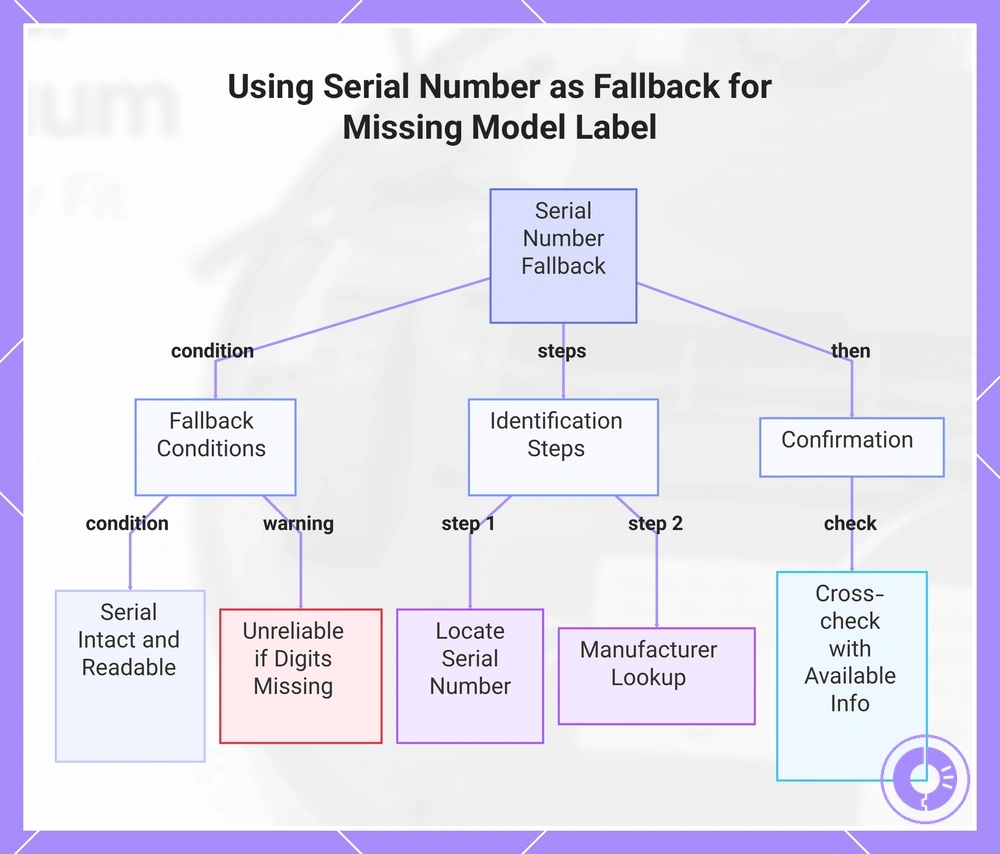
If the model label is missing or unreadable, the serial number can serve as a fallback to recover model context. This method works only when the serial number is intact and clearly readable. If digits are missing or unclear, the fallback may not be reliable, and further validation is needed.
When the model label is missing or unreadable, use the serial number as a fallback to identify the model.
- Locate the serial number on the product, packaging, or documentation such as the manual or settings menu.
- A manufacturer lookup or product registration tool may help associate the serial number with a model and series.
- Cross-check the resulting model context with any available label, app, or paperwork to confirm the serial number's association.
This chart shows how to use the serial number to identify a product model when the label is missing or unreadable, including the required conditions, steps, and confirmation.
When serial number lookups help and when they don’t
Relying on a serial number match to confirm identity depends on database completeness and correct recording. A match raises confidence, but a missing result does not guarantee the item is invalid. The goal is confidence over certainty.
Helps when:
- the manufacturer maintains a searchable database covering the product’s era;
- the number appears in a police or insurance record;
- the number is physically verified and matches an order or warranty record.
Does not help when:
- the manufacturer does not publish serial records publicly;
- the database returns no result for a legitimate older or imported model;
- the number is removed, damaged, or duplicated on counterfeits;
- the owner never recorded it and no external evidence exists.
For example, a serial number on a second‑hand appliance may not appear in the manufacturer’s online tool if the unit predates digital records, making a visual check or proof of purchase a more reliable way to confirm.
Avoiding common identification mistakes that lead to wrong parts
Common identification mistakes — misreading characters, using a partial number, or picking the wrong series — can lead to wrong parts. Correcting these mistakes before you buy can keep you from ordering the wrong part.
Even a near-match in part numbers can lead to wrong fit if the series or revision differs. The risk is higher with second-hand units or swapped components that may have been modified.
- Confusing model number with series number — Confirm both, as a single letter can point to a different version.
- Missing characters from a misread label — Double-check every character; smudged or handwritten labels often cause errors.
- Using only a partial number — Start with the full part number; a shortened version may match multiple products.
- Relying on memory instead of the label — Verify the number directly from the part, not from a recalled sequence.
- Confusing similar revision codes — Ensure the revision letter is included; older revisions may not fit newer assemblies.
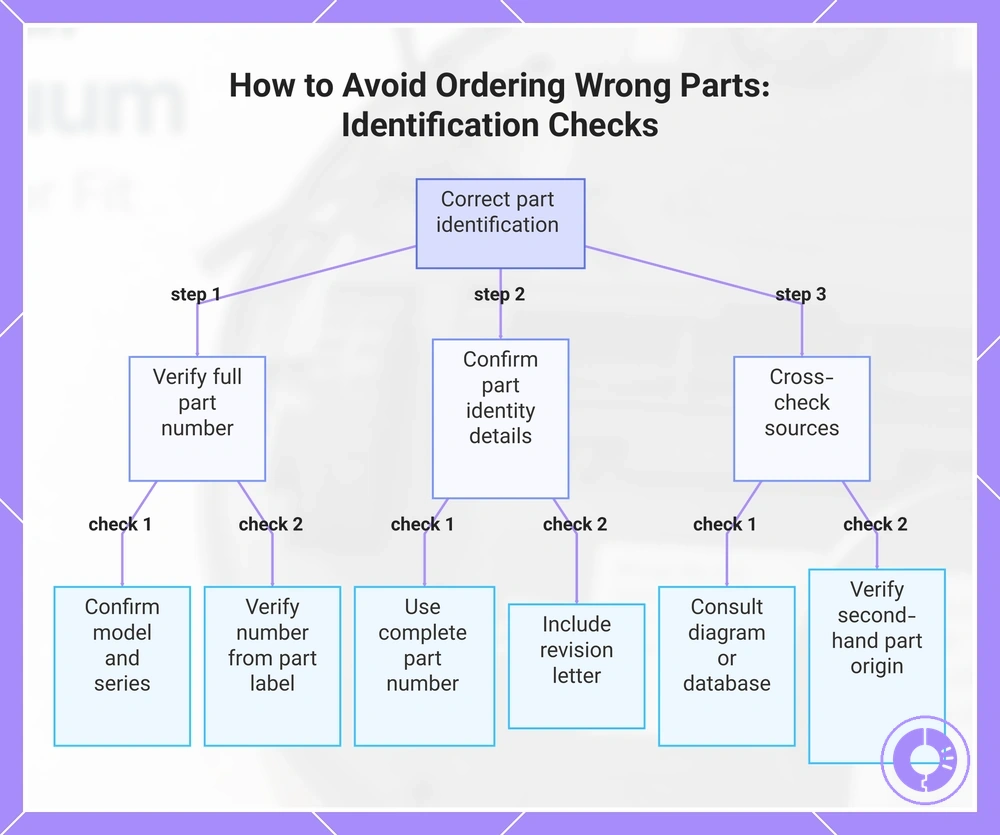
- Not confirming with a second source — Consult a diagram or parts database before ordering.
- Ignoring the source of second-hand or swapped parts — Verify the original model and any history of modifications.
If unsure, a quick cross-check can help avoid a return.
This chart outlines three key verification steps to correct common part identification mistakes and ensure you order the right component.
Using your identified model to narrow replacement parts by category without guesswork
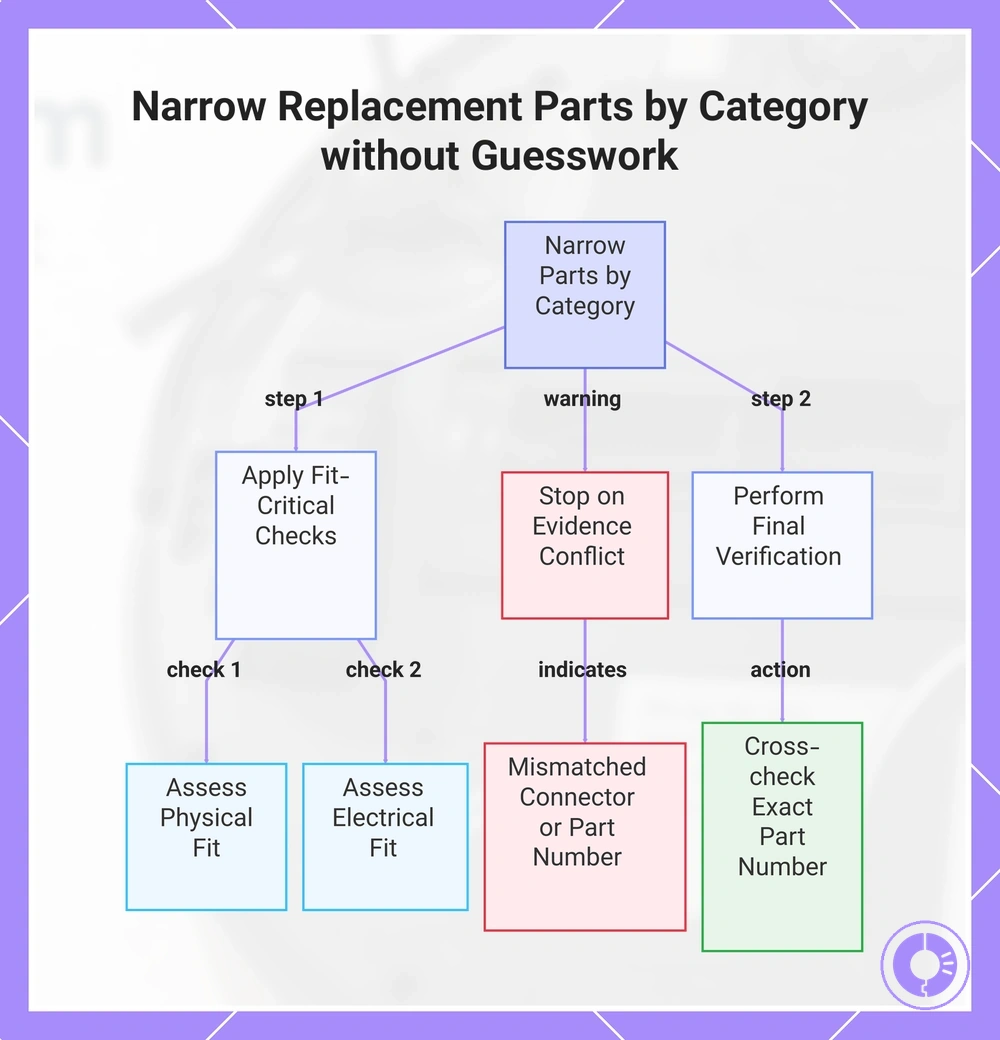
To narrow replacement parts by category without guesswork, match fit-critical attributes to your confirmed model or series identifier. Once you know your Roomba model, you can often rule out incompatible filters, brushes, batteries, or wheels by comparing their shape, size, or connector type. Narrow, then confirm.
Fit-critical attributes vary across models. The types of Roomba replacement parts guide defines these categories, and the following checklist can help you shortlist compatible options.
- Check the filter dimensions and shape — a filter that fits one model may not seal correctly in another.
- Confirm the brush type (e.g., bristle, rubber, or combo) and length required for your model's deck.
- Verify the battery connector style and voltage — even within the same series, connectors can change.
- Match the wheel module design — look at the tire diameter, tread pattern, and mounting bracket.
- Ensure the vacuum bin or dustbin latch aligns with your model's body shape.
- Compare the side brush attachment point — some models use a single screw, others a snap-on clip.
- Stop if any evidence—such as a mismatched connector or different part number—conflicts with your category assumption.
Narrowing by category reduces guesswork but does not replace final part-level verification. Cross-check the exact part number or physical dimensions before placing an order to avoid misfit returns.
This chart shows how to narrow Roomba replacement parts by category using fit-critical attribute checks and final verification to avoid incompatible purchases.
Series-level compatibility vs model-specific fit differences
Series-level compatibility means parts share a common platform within a product family, so they often interchange with minimal fit concerns. Model-specific fit confirms that the exact interface and revision details of a particular model are matched. Which level is sufficient depends on interface.
What changes across revisions are interface attributes like connector shape or mounting orientation; the underlying series platform usually remains consistent.
- Series-level usually works when the interface layout and mounting points stay unchanged across models in the same generation.
- Model-specific is needed when revision changes alter a fit-critical attribute like clip geometry or sensor placement.
To avoid misalignment, confirm the fit-critical attribute—usually the interface—before assuming interchangeability.
Cross-checking filters, brushes/rollers, batteries, and wheel modules against the same identifier
Cross-checking filters, brushes/rollers, batteries, and wheel modules against the same identifier prevents category-by-category drift. This single identifier confirms compatibility across all part categories. Use the same identifier every time.
- Start with the confirmed model or series identifier from the robot label or app.
- Verify that the filter shape and mounting tabs match the identifier before ordering.
- Double-check the brush or roller end-cap design and length against the same identifier.
- Confirm the battery voltage and connector type correspond to the identifier specification.
- Check the wheel module mounting bracket and wiring harness orientation using the same identifier.
- If a component was previously swapped, verify the installed part specification rather than relying on the original model number alone.
For example, you can find step-by-step guidance on how to choose and replace Roomba filters.
For safety, review the instructions on how to choose and replace Roomba batteries safely.
Final Pre-order Compatibility Checks Before You Buy Any Replacement Part
These final checks confirm identifiers and fit-critical attributes to reduce misfit risk. Run through this checklist before you order.
Run these checks based on your part category and device model. For model-specific details, visit the Roomba replacement parts hub.
- Confirm the model/series string on the device label matches the part listing.
- Verify the part number printed on the original component matches the replacement.
- Check the shape and outline of the part against a diagram or photo of the original.
- Measure the connector type, pin arrangement, or cable length where applicable.
- Double-check mounting holes, clip positions, or screw patterns for alignment.
- Compare manufacturer markings or date codes if the part has a supersession.
- Stop if any identifier or fit-critical attribute does not align — do not order until resolved.